Lifter Elements 1.8.0 is out. It adds a Quiz widget and seven Quiz dynamic tags, so the quiz page can now be designed in Elementor’s Theme Builder the same way you already design course and lesson pages.
First, the practical bit
If your license is active, the update is waiting in your WordPress admin under Dashboard > Updates, or on the plugin’s row under Plugins > Installed Plugins. If you’d rather download it, sign in to Tangible Cloud, open Downloads, and get the zip from there.
Lifter Elements needs WordPress 6.8, PHP 7.4 and Elementor 3.5.0 or later. The Quiz widget belongs in a Theme Builder template, and the Theme Builder is an Elementor Pro feature, so you need Pro to build a quiz template. The dynamic tags work wherever Elementor offers them.
Nothing in 1.8.0 changes pages you’ve already built. Existing templates, widget settings and tags carry over as they are.
The quiz page, in Elementor
Until now the quiz page was a LifterLMS page a Lifter Elements template couldn’t build on its own. You could wrap it in a template, but the quiz itself came through Elementor’s Post Content widget, laid out the way LifterLMS lays it out, with no way to move its parts or style them from the editor.
The Quiz widget changes that. Put it in a Single Post template with a display condition for quizzes and it prints the whole quiz: the screen a student sees before they start, the questions while they take it, and their results afterwards. LifterLMS still runs the quiz inside it, so Start Quiz, Save & Exit, Resume and the results all behave exactly as they do on a theme’s quiz page. You only need the one widget.
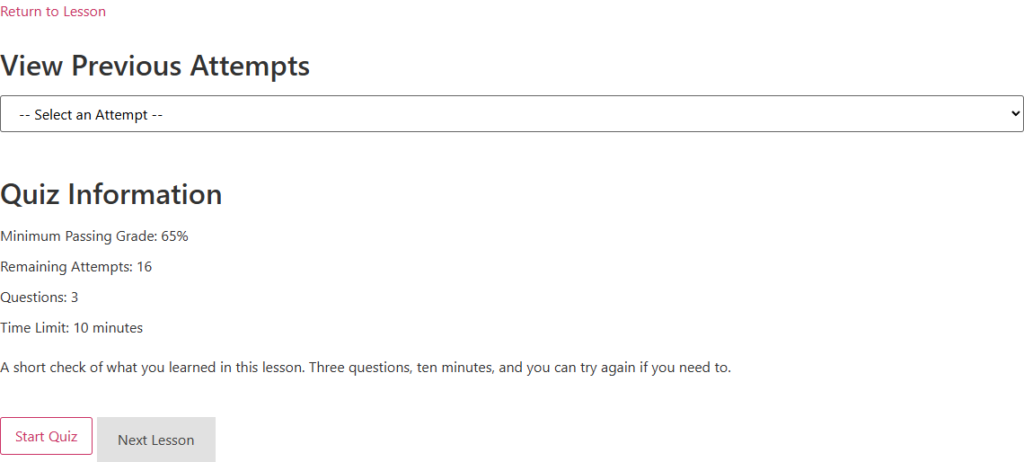
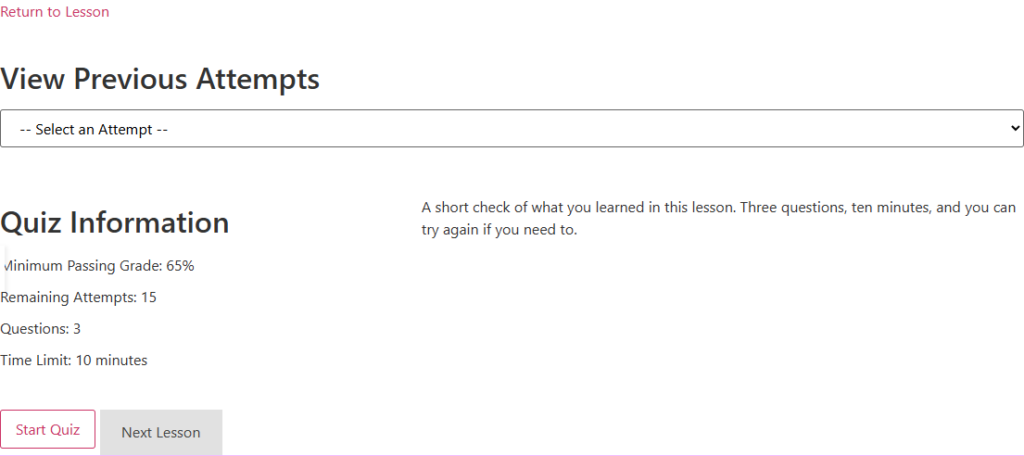
The widget has two renders. Leave Render on Lifter Elements and each screen becomes a template of parts you can reorder, lay out as a stack, a row or a grid, and give per-part widths and alignment. The start screen’s parts are the return link, the student’s results, the quiz information, the description, notices and the Start button. The question screen’s are the progress bar, the timer, the question, the buttons and the counter. The results block’s are the title, the grade and details, the question review and the previous-attempts dropdown. Switch Render to LifterLMS and the quiz prints exactly as LifterLMS prints it, with the Style tab still available.
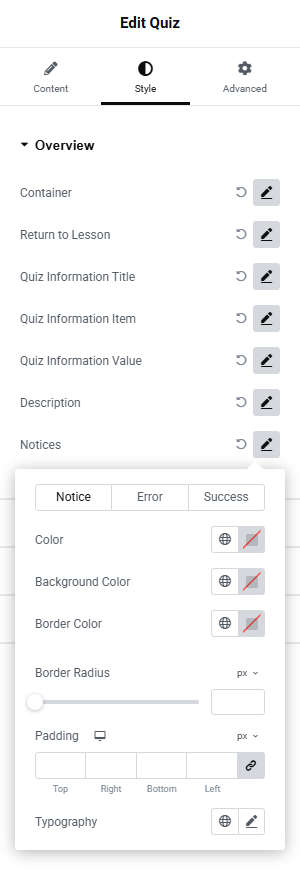
The Style tab has a row for every part: the container, the return link, the quiz information, the notices, the grade donut, the question rows, the timer, the choice markers, and so on. Each row opens its own small panel of colours, typography and spacing, and you can switch a row back to Default to drop your changes without clearing every control. The two button styles cover every LifterLMS quiz button, including the ones its script adds during an attempt, and the secondary button has a Copy from Primary Button action so Next Lesson, Previous Question and Save & Exit match Start Quiz in one click, theme styling included.
One thing we spent time on is the editor preview. A quiz has states you can’t reach by clicking around a template: the question screen, the results block, a resume notice. When you open the Questions Template, the Results Template or the matching style sections, the canvas switches to a sample of that screen, built from the quiz you’ve chosen under Preview Settings, so you can style every state without taking the quiz yourself.
The widget’s reference page is in the docs: Quiz widget. There’s also a step-by-step guide to building a quiz template.
Seven Quiz dynamic tags
The tags cover the rest of the quiz page: anything you want to show outside the widget, in a heading, a button or a text block of your own. They appear under LifterElements: Quiz in Elementor’s dynamic tag picker and read from the quiz being viewed.
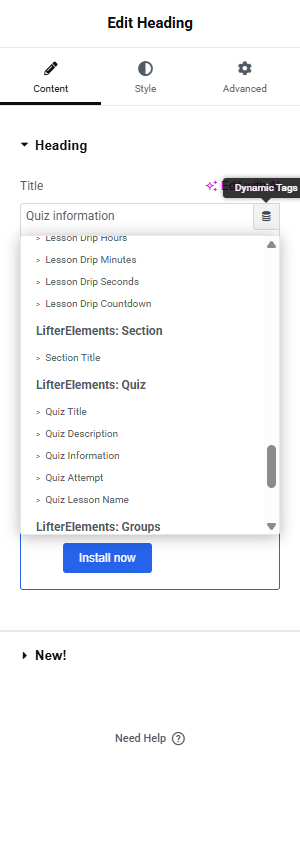
- Quiz Title and Quiz Description, for the quiz’s name and the content written in its editor
- Quiz Information, for one field from the quiz’s settings: passing grade, allowed or remaining attempts, attempts taken, question count or time limit
- Quiz Attempt, for one value from the logged-in student’s attempts: best grade, last grade, status, correct answers, completed date or total time
- Quiz Review URL, linking to the student’s latest finished attempt
- Quiz Lesson Name and Quiz Lesson URL, for the lesson the quiz belongs to
A few uses we had in mind: a results banner that greets a returning student with their best grade, a “Back to the lesson” button of your own instead of the widget’s return link, or a heading that carries the quiz title above the widget. Each tag prints what LifterLMS’s own quiz page would print for the same data, and nothing where LifterLMS shows nothing, so a visitor who isn’t logged in sees no attempt data rather than a wrong value.
The full list is on the Quiz dynamic tags page.
The editor preview now looks like the site
A smaller change in 1.8.0 that you’ll notice on course and quiz templates in the Theme Builder. LifterLMS scopes some of its styling to the page’s body classes, and in the editor’s preview those classes were being set from the wrong place: the template post itself rather than the course or quiz you’d chosen under Preview Settings. So a quiz template previewed without LifterLMS’s quiz styling, and you were styling by eye against something the site would never show. The preview now reads the post type from the template’s preview settings, so the body classes match and a course or quiz looks in the editor the way it looks on the site.
This one came with the first end-to-end tests of the editor preview, so it stays fixed.
What to know about the quiz coverage
The Quiz widget renders only on a quiz page. On a lesson, a course or an ordinary page it prints nothing on the front end and shows a note in the editor, so keep it in a template that applies to quizzes.
Course widgets and course dynamic tags don’t resolve on a quiz page, because course context only exists on course and lesson pages. The Quiz Lesson tags are how you get back to the lesson from a quiz template; the lesson’s parent course doesn’t have a quiz tag yet. Put course navigation in the lesson template.
LifterLMS still decides who can take a quiz. A visitor who isn’t allowed to is redirected before the template renders, so there’s no “not enrolled” state to design on the quiz template itself. And when you check a finished template, do it as an enrolled student: administrators are never restricted from a quiz, so logged in as one you won’t see what a student sees.
Full changelog
1.8.0
Release Date: 2026-10-19
Quiz coverage: a Quiz widget and Quiz dynamic tags.
- New Quiz widget: the whole LifterLMS quiz page in one widget for Theme Builder quiz templates. Two renders: LifterLMS’s own output, or Lifter Elements templates of parts with Stack, Row and Grid layouts, per-part width and alignment, a Style tab with a row per part, and “Copy from Primary Button” on the secondary button
- New dynamic tags: Quiz Title, Quiz Description, Quiz Information, Quiz Attempt, Quiz Review URL, Quiz Lesson Name, Quiz Lesson URL
- Editor: a theme template’s preview now carries the previewed post type’s styling, so LifterLMS pages look in the editor as they do on the site
- End-to-end editor tests added
If something in this release doesn’t behave the way you expect, get in touch with support and tell us what you were building.
